Google CSS
How to switch to a Google CSS without a dip in performance
The CSS saving is real, but a careless switch can cost you a fortnight of sales while campaigns relearn and products wait for approval. This is the process we use, in order, with the steps people most often miss.
 Matthew DaviesCo-Founder, Growtomic
· 4 min read
The short version
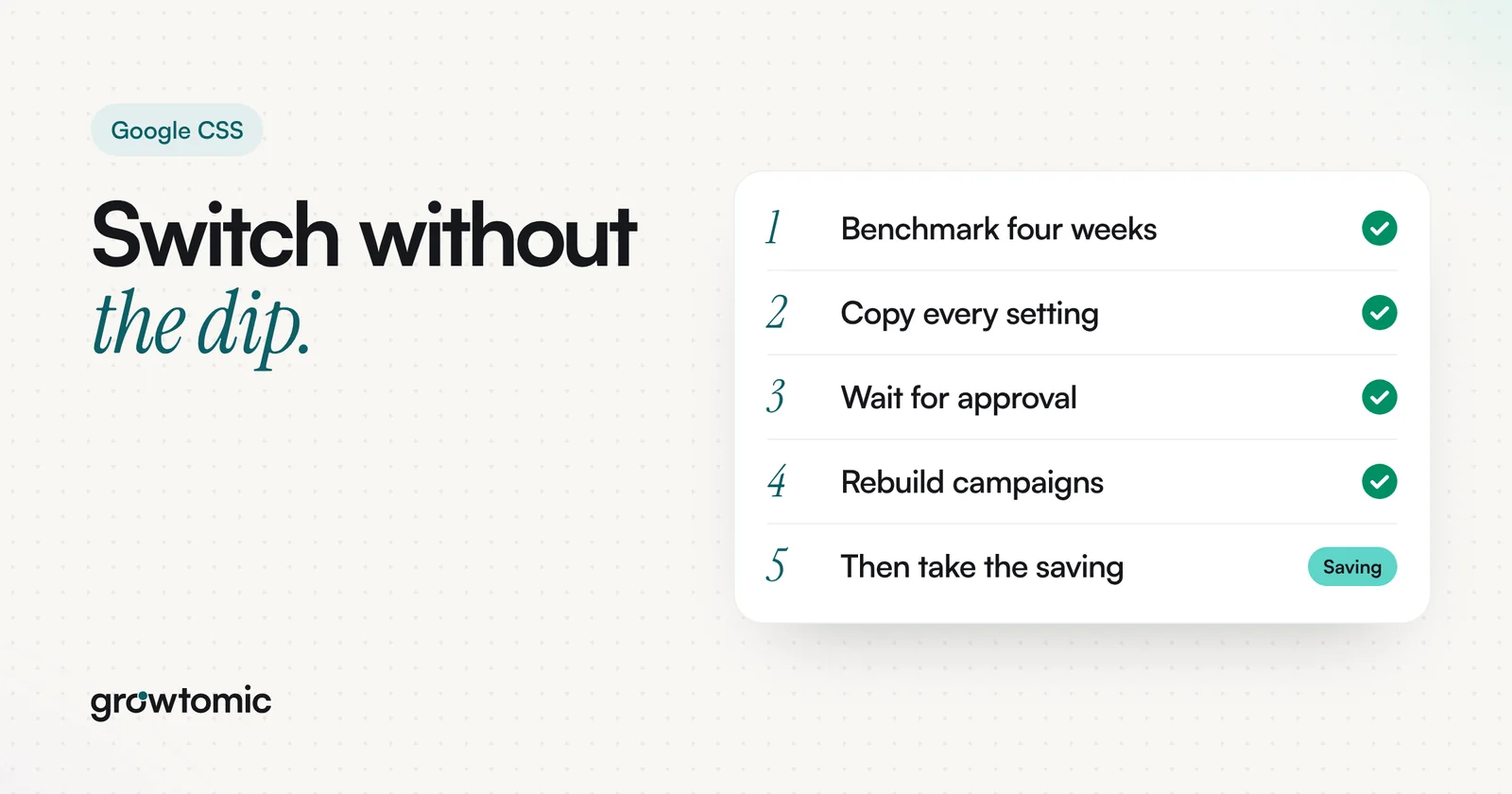
- Benchmark four weeks of Shopping data before you touch anything.
- If a new Merchant Center account is created, copy every setting, not just the feed.
- Campaigns can't change Merchant Center accounts, so plan the rebuild and the switch-over date.
- Don't cut bids on day one. Let smart bidding settle, then take the saving.
1. Benchmark before you start
You can't prove the switch worked without a clean before picture. Export four weeks of data for each Shopping and Performance Max campaign, per country:
- Average CPC and cost
- Impressions, clicks and click-through rate
- Search impression share and impression share lost to rank (Standard Shopping)
- Conversions, conversion value and ROAS
- The top 20 products by spend and by revenue
Note anything unusual in that window, such as a sale or a stock problem, so you don't compare against a distorted period.
2. Find out how your provider sets up the account
There are two models, and the rest of the process depends on which one you're getting:
| Model | What happens | Effort |
|---|---|---|
| Existing account linked | Your current Merchant Center account is linked to the CSS | Low. Campaigns keep running. |
| New sub-account | A new Merchant Center account is created under the provider's multi-client account | Higher. Settings copied and campaigns rebuilt. |
Ask the provider directly, and ask who owns the account if you leave. The rest of this guide assumes the new sub-account model, because it's where things go wrong.
3. Copy every Merchant Center setting
The feed is the obvious part. These are the parts that get forgotten:
- Supplemental feeds and feed rules. Title rewrites, custom labels and fixes often live here rather than in the main feed.
- Shipping settings. Rates, delivery times and free-delivery thresholds. Missing delivery times can lose you the delivery annotation on ads.
- Returns policy. Return windows and costs show on your ads and free listings.
- Business information. Address, customer service contacts and logo.
- Promotions. Any live or scheduled promotions need recreating.
- Product reviews feed, if you submit one for product ratings.
- Automatic improvements. Match whatever you had for automatic item updates and image improvements.
- Excluded destinations and countries, so products you'd deliberately kept off free listings or particular markets stay off.
4. Wait for products to be approved
New accounts review products before they serve, and that can take a few days. Don't switch any campaigns over until the new account shows the same number of approved products as the old one. Check the diagnostics page for anything disapproved that was fine before. It usually points to a setting that didn't come across, such as shipping for a country.
5. Rebuild the campaigns
A Shopping campaign is tied to the Merchant Center account it was created with, so you'll be building new ones linked to the new account. Rebuild like for like first. Improvements can come later, once you've proved the switch didn't break anything.
- Same campaign structure, product groups and listing group filters
- Same negative keywords, including shared lists
- Same campaign priorities for Standard Shopping
- For Performance Max: the same asset groups, audience signals, brand exclusions and URL settings
- Same budgets, locations and ad schedules
Conversion actions live at the Google Ads account level, so tracking carries on working. Check that each new campaign uses the same conversion goals as the old one.
6. Switch over cleanly
Avoid running old and new campaigns for the same products side by side for weeks. It muddies the data and you can't tell which is doing the work. Two clean options:
- Hard switch. Enable the new campaigns and pause the old ones the same morning, once products are approved and the new campaigns have started serving.
- Staged switch. Move one country or one product category first, keep the rest on Google Shopping, and compare the two for two to four weeks before moving everything.
Pick a quiet week. Don't switch the week before Black Friday.
7. Handle bids properly
How you take the saving depends on how you bid:
| Bidding | What to do |
|---|---|
| Manual CPC or max CPC caps | Keep bids the same for the first week, then reduce in steps of about 5%, watching impression share. Stop when share starts to fall. |
| Target ROAS or max conversion value | Keep the same target. The system will usually win more auctions at the same cost, so the saving shows up as more clicks and sales rather than lower CPCs. Once it's stable, you can raise the target or the budget. |
New smart bidding campaigns go through a learning period. Avoid changing targets, budgets or structure for the first one to two weeks. Most early "the switch isn't working" panics are just learning.
8. Compare against your benchmark
At four weeks and again at eight, compare against the numbers from step 1, for the same countries and the same top products. Look at average CPC, impression share and ROAS together. Lower CPC with lower impression share means you cut bids too far. Same CPC with higher impression share and more conversion value means the saving went into volume, which is often the better outcome.
The mistakes we see most
- Copying the feed but not the supplemental feed, so every optimised title reverts overnight.
- Forgetting shipping settings for a second country, and every product there disapproving.
- Claiming the website in the new account while the old campaigns are still the only ones running.
- Leaving out negative keyword lists, so the new campaigns pay for searches the old ones had excluded.
- Cutting bids on day one, then blaming the CSS when volume drops.
If you'd rather not do it yourself, this is exactly what our Google CSS service handles.
Questions
How long does switching to a CSS take?
With an existing account linked, it can be done in a day. With a new Merchant Center account, allow one to two weeks for setup, product approval, rebuilding and the switch-over.
Will I lose my campaign history?
Your Google Ads account, conversion data and audiences stay. If campaigns are rebuilt for a new Merchant Center account, the new campaigns start their own history and smart bidding goes through a learning period.
Can I switch back to Google Shopping?
Yes. It's the same process in reverse, which is one reason to agree who owns the Merchant Center account before you start.
Written by
Matthew DaviesMatthew is co-founder of Growtomic and an ecommerce conversion specialist. He runs Google Shopping, CSS and PPC accounts for our clients and for ecommerce stores of his own.
LinkedInUp to 20% cheaper Shopping clicks in the UK & EEA. Start with a free audit.